> For the complete documentation index, see [llms.txt](https://docs.nexportsolutions.com/nexport-user-documentation/llms.txt). Markdown versions of documentation pages are available by appending `.md` to page URLs; this page is available as [Markdown](https://docs.nexportsolutions.com/nexport-user-documentation/nexport-market/admin-guide/shcoe/library-scholarships-shcoe.md).
# Library Scholarships (SHCOE)
> Note This page applies only to SHCOE-managed marketplaces. For generic workflows, use the standard Admin Guide topics referenced below.
This guide walks SHCOE staff through onboarding library stores, selling open-ended scholarships (seats) to libraries, and distributing those seats to students in space.vars.PRODUCT\_NAME.
> Tip Use open‑ended products for libraries. They allow staff to choose the exact training at assignment time and keep inventory flexible.
## Prerequisites
* Admin access to the library’s store in space.vars.PRODUCT\_NAME.
* NexPort Campus groups established for Part 1 and Part 2 training (per SHCOE model).
* Familiarity with product mapping and categories.
* Wholesale permissions for creating orders and assigning seats on behalf of organizations.
Related setup pages: [Stores & Branding](/nexport-user-documentation/nexport-market/admin-guide/getting-started/stores.md), [Products](/nexport-user-documentation/nexport-market/admin-guide/running-your-store/products.md), [Fixed vs Open‑Ended Products](/nexport-user-documentation/nexport-market/admin-guide/running-your-store/open-vs-fixed-products.md), [NexPort Mapping](/nexport-user-documentation/nexport-market/admin-guide/running-your-store/nexport-mapping.md), [Purchasing Groups](/nexport-user-documentation/nexport-market/admin-guide/running-your-store/purchasing-groups.md), [Organization Purchases & Purchasing Agents](/nexport-user-documentation/nexport-market/admin-guide/running-your-store/wholesale.md).
## Onboard a New Library
Set up the library’s dedicated store and link it to the correct subscription organization, branding, and SHCOE mappings. Complete this setup before selling seats so assignments, reporting, and emails behave as expected.
1. Create the library store
* Create the store with the correct public URL; enable SSL if required. See [Stores & Branding](/nexport-user-documentation/nexport-market/admin-guide/getting-started/stores.md).
* Set the Subscription Organization Id. If needed, select “Override owner organization Id” to tie enrollments and reporting to the library’s org.
* Adjust remaining store configuration to match SHCOE requirements (branding, emails, pages).
2. Create library groups in NexPort Campus
* Create/confirm library groups in both Part 1 and Part 2 organizations.
* These groups determine the memberships students receive when a scholarship is assigned.
3. Configure product mappings
* Map Fixed products directly to the intended training plans. See [NexPort Mapping](/nexport-user-documentation/nexport-market/admin-guide/running-your-store/nexport-mapping.md).
* Do not create additional mappings for Open‑Ended products; they should fall back to the default mapping behavior.
4. Prepare “Open Ended” categories
* Confirm an existing Open Ended category suits this library’s offerings. If not, create a new category for selection at assignment time. See [Products](/nexport-user-documentation/nexport-market/admin-guide/running-your-store/products.md).
5. Seed the initial scholarships
* “Sell” the initial set of scholarships to the library (open‑ended products only). See [Organization Purchases & Purchasing Agents](/nexport-user-documentation/nexport-market/admin-guide/running-your-store/wholesale.md).
> Warning Do not manually set order status to Complete for mapped products. This breaks redemption flows.
## Configure Products for Libraries
Set up products so libraries buy only open‑ended seats, while staff select specific Fixed training at assignment time. Use Fixed products to represent concrete training plans, and use Open‑ended products to hold flexible inventory for a library’s pool.
### Fixed products
Use Fixed products to represent each specific training plan a student can be enrolled in.
* Map to training plan: Create or verify a Fixed product and map it directly to the intended NexPort training plan. See [NexPort Mapping](/nexport-user-documentation/nexport-market/admin-guide/running-your-store/nexport-mapping.md).
* Category placement: Add the Fixed product to the category (for example, the SHCOE Part 1 or Part 2 selection category) so it appears in the open‑ended pick list.
* Visibility: Keep Fixed products published so they are selectable during assignment; they do not need to be directly purchasable by libraries.
* Naming: Use clear titles that match how staff identify the training (e.g., “Part 1: \[Course Name]”).
> Tip If a Fixed product should no longer be selectable, remove it from the Part 2 (or relevant) category. This effectively retires it for new assignments without affecting historical orders.
### Open‑ended products
Use Open‑ended products for the inventory libraries purchase. Staff choose the exact Fixed product when assigning a seat to a student.
* Mapping mode: Set the Open‑ended product to “Map to marketplace category.” Do not add a direct NexPort mapping to this product.
* Selection source: Choose the category that contains your Fixed products; the assignment screen will display those items as the selection list.
* Libraries only: Sell Open‑ended products to libraries (organization purchases). Do not sell Fixed products to libraries for SHCOE flows.
* Self‑redeem vs staff‑assign: The “Map to Nexport Catalog” option requires “Assign When Redeemed” and is intended for self‑redeem scenarios. For SHCOE’s staff‑driven assignments, prefer category‑based Open‑ended products.
> Warning Do not create additional NexPort mappings on Open‑ended products. They should fall back to default behavior so the selection list comes solely from the chosen category.
> Note Example: A library may purchase open‑ended seats that can be used for any SHCOE career path training plan. The specific path is chosen when staff assign the seat to a student.
## Sell or Add Scholarships to a Library
Use this when a library needs to increase its inventory of scholarship seats. Create a wholesale order for open‑ended scholarship products to add seats to the library’s pool for later assignment.
 *Figure: Create a new wholesale order for the library.*
 *Figure: Select open‑ended scholarship products for the order.*
* Libraries should only be sold Open‑Ended products.
* Additional purchases can be added to the same group or funding pool for the library.
* Use wholesale orders to create purchases on the library’s behalf. See [Organization Purchases & Purchasing Agents](/nexport-user-documentation/nexport-market/admin-guide/running-your-store/wholesale.md).
## Distribute Seats to Students (on behalf of a library)
### Assign the Seat
 *Figure: Choose the student to receive the seat.*
 *Figure: Open‑ended redemption mode available for this purchase.*
 *Figure: Select Normal vs Open‑ended redemption.*
 *Figure: Open‑ended lets you choose a Fixed product at assignment time.*
 *Figure: Confirm to create the enrollment.*
### Verify Status & Logs
 *Figure: Verify assignment/enrollment status.*
 *Figure: Adjust an assignment if needed.*
 *Figure: Filterable audit trail of assignment actions.*
1. Verify wholesale permission
* Ensure the staff user has permission to manage wholesale orders and assignments. See [Organization Purchases & Purchasing Agents](/nexport-user-documentation/nexport-market/admin-guide/running-your-store/wholesale.md).
This step ensures you have the rights to act on behalf of the library's organization in Wholesale. Without these permissions you won't see Wholesale → Assignments or be able to assign seats.
2. Find the purchase to assign
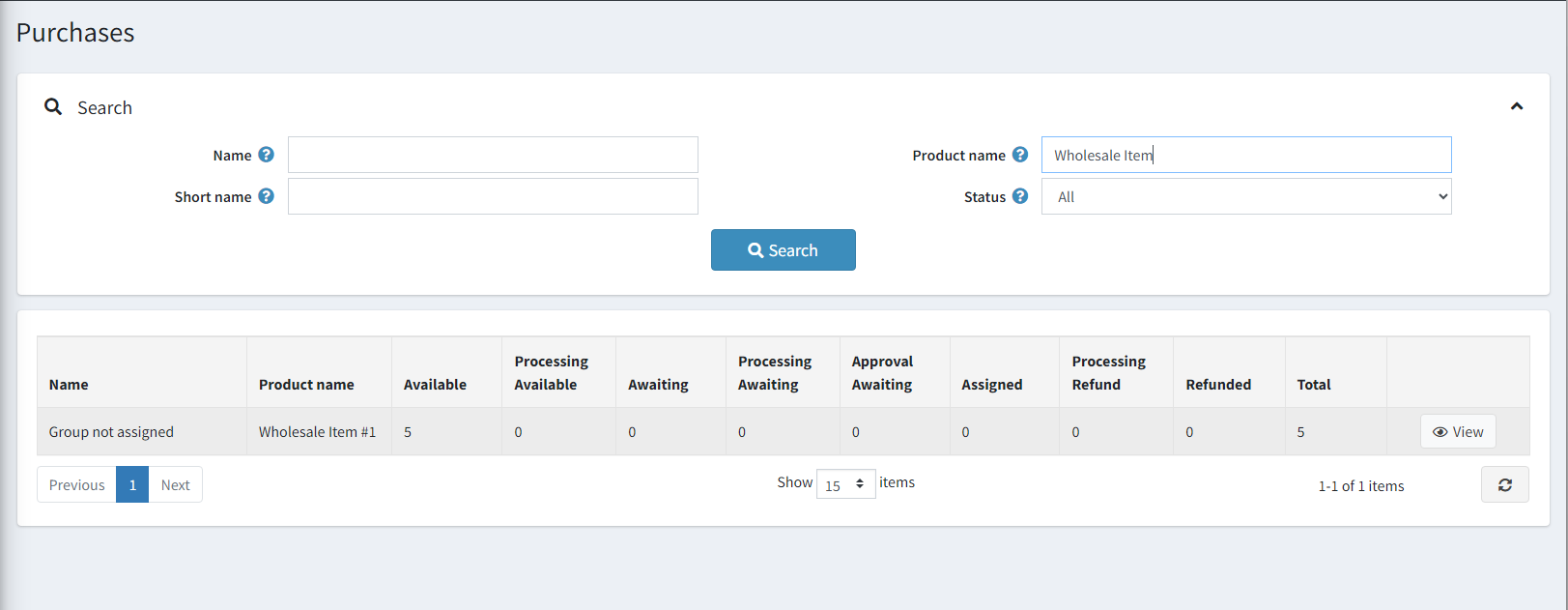
*  *Figure: Locate purchases by Group.*
* Go to Wholesale → Assignments (or the organization’s wholesale orders).
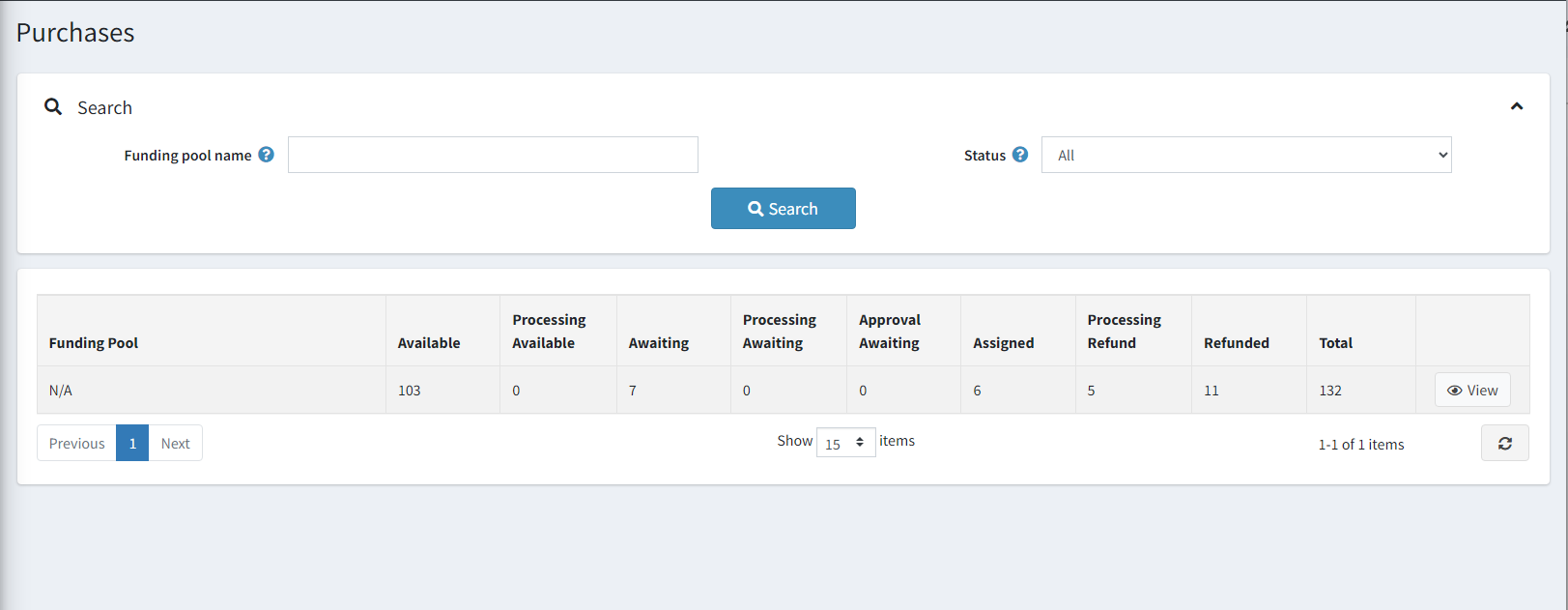
Open Wholesale → Assignments to view the library's available purchases. Use Group or Funding Pool filters to locate the correct purchase, then open its assignment item.
*Figure: Locate purchases by Funding Pool.*
* Locate purchases by Group or by Funding Pool.
* Open the item to view the Assignment screen.
* *Figure: Open the purchase item to assign.*
3. Assign the seat
* Specify the student to receive the seat (search by email or account).
Search for and select the correct student recipient. For open‑ended purchases, choose the specific Fixed product during assignment, then confirm to create the enrollment.
* For Open‑Ended redemptions: choose the redemption option:
* Normal redemption: use the product’s existing mapping (for Fixed products or pre‑selected items).
* Open‑ended redemption: choose the Fixed product from the configured category list.
* Confirm the redemption to create the enrollment.
4. Check status and logs
* Use the assignment status to verify the enrollment.
Verify the assignment shows an active status for the student. Use the Audit log to review who performed each action and troubleshoot issues if they arise.
* The Audit log records each action and can be filtered by user, action type, and date.
> Tip If the student is missing or has account issues, resolve registration first, then return to assign. See [Account & Registration](/nexport-user-documentation/nexport-market/end-user-guide/account-registration.md).
## Adjustments, Un-assignments, and Re-assignments
Use this when a currently assigned student should no longer occupy a seat (for example, they left the program). Un-assign to return the seat to the library’s pool, then optionally re-assign it to a different student; this is a library admin decision.
* Un-assignment removes the current student's enrollment from the invoice item and resets the seat to unassigned.
* The associated NexPort enrollment expires when un-assigned.
* There is no limit on the number of un-assignments; each is tracked in the Audit log.
* A previously un-assigned seat can be assigned again. Depending on the course state, you may see Additional enrollment options (for example, add a new term). Choose the appropriate option before re-assigning.
> See also
>
> * [Assigning and Transferring NexPort Campus Seats](/nexport-user-documentation/nexport-market/admin-guide/running-your-store/assigning-and-transferring-seats.md): Use when moving a seat from one student to another (or correcting the recipient).
> * [Email Redemption Links for Seats](/nexport-user-documentation/nexport-market/admin-guide/running-your-store/email-redemption-links-for-seats.md): Use when you want the student (or purchasing agent) to self‑redeem later via a one‑time link.
## Refunds (Seats/Scholarships)
Use this when SHCOE refunds the cost of a seat back to a library and removes that seat from the library’s pool. If the seat is currently assigned to a student, un-assign it first so the item can be refunded.
 *Figure: Refund note appears when a refund request exists.*
* If a redemption has already been assigned, a refund request is required to proceed.
* Create the refund request from the assignment listing; an administrator must approve it.
* Approval disables the invoice item and expires the student’s enrollment (if applicable).
* A refund note appears on the invoice item when a refund request exists.
See also: [Returns and Refunds for Seats](/nexport-user-documentation/nexport-market/admin-guide/running-your-store/returns-and-refunds-for-seats.md).
## Retire a Product (SHCOE Part 2)
* To retire a product, remove that Fixed product from the Part 2 category so it no longer appears for selection.
## Related
* [Fixed vs Open‑Ended Products](/nexport-user-documentation/nexport-market/admin-guide/running-your-store/open-vs-fixed-products.md)
* [NexPort Mapping](/nexport-user-documentation/nexport-market/admin-guide/running-your-store/nexport-mapping.md)
* [Purchasing Groups](/nexport-user-documentation/nexport-market/admin-guide/running-your-store/purchasing-groups.md)
* [Assigning and Transferring NexPort Campus Seats](/nexport-user-documentation/nexport-market/admin-guide/running-your-store/assigning-and-transferring-seats.md)
* [Email Redemption Links for Seats](/nexport-user-documentation/nexport-market/admin-guide/running-your-store/email-redemption-links-for-seats.md)
* [Organization Purchases & Purchasing Agents](/nexport-user-documentation/nexport-market/admin-guide/running-your-store/wholesale.md)
* [Orders & Fulfillment](/nexport-user-documentation/nexport-market/admin-guide/running-your-store/orders.md)
* [Reporting & Analytics](/nexport-user-documentation/nexport-market/admin-guide/running-your-store/reporting.md)